
Home/Blog/How to Set Up Automated Dosing
How to Set Up Automated Dosing with a Shelly Outlet
May 23, 2026 · 8 min read · NextUpReef Team
Consistent dosing is one of the highest-impact things you can do for a reef tank. Even small daily swings in alkalinity stress corals. NextUpReef turns a Shelly smart outlet into a fully automated doser in about 10 minutes. Once the schedule is saved to the outlet, your tank gets dosed on time whether your phone is home, your internet is up, or the app is open.
🔒 The schedule lives on the outlet, not the app
When you tap Save to plug, NextUpReef writes the dose schedule directly to the Shelly outlet's onboard memory. The outlet runs every dose using its own real-time clock. Router down, phone dead, NextUpReef servers unreachable — none of it stops your dosing.
Before you start: add a Shelly outlet tagged as Doser
The dosing editor only appears on outlets with their type set to Doser. If you haven't set up your outlet yet, follow the Shelly outlet setup guide first and choose Doser when asked what it controls. That takes about 5 minutes.
Need to buy a Shelly outlet? Shop compatible hardware →
The setup flow, step by step
🔧 Prerequisite: add a Shelly outlet tagged as Doser
The dosing editor only appears on outlets whose type is Doser. If you haven’t added your outlet yet, follow the Shelly setup guide first and choose Doser when asked what it controls.
Open Dosing Schedules
From the app drawer tap Control Center, then Dosing. You’ll see your doser outlets grouped by tank. Outlets without a schedule show No schedule set up. Tap your outlet.
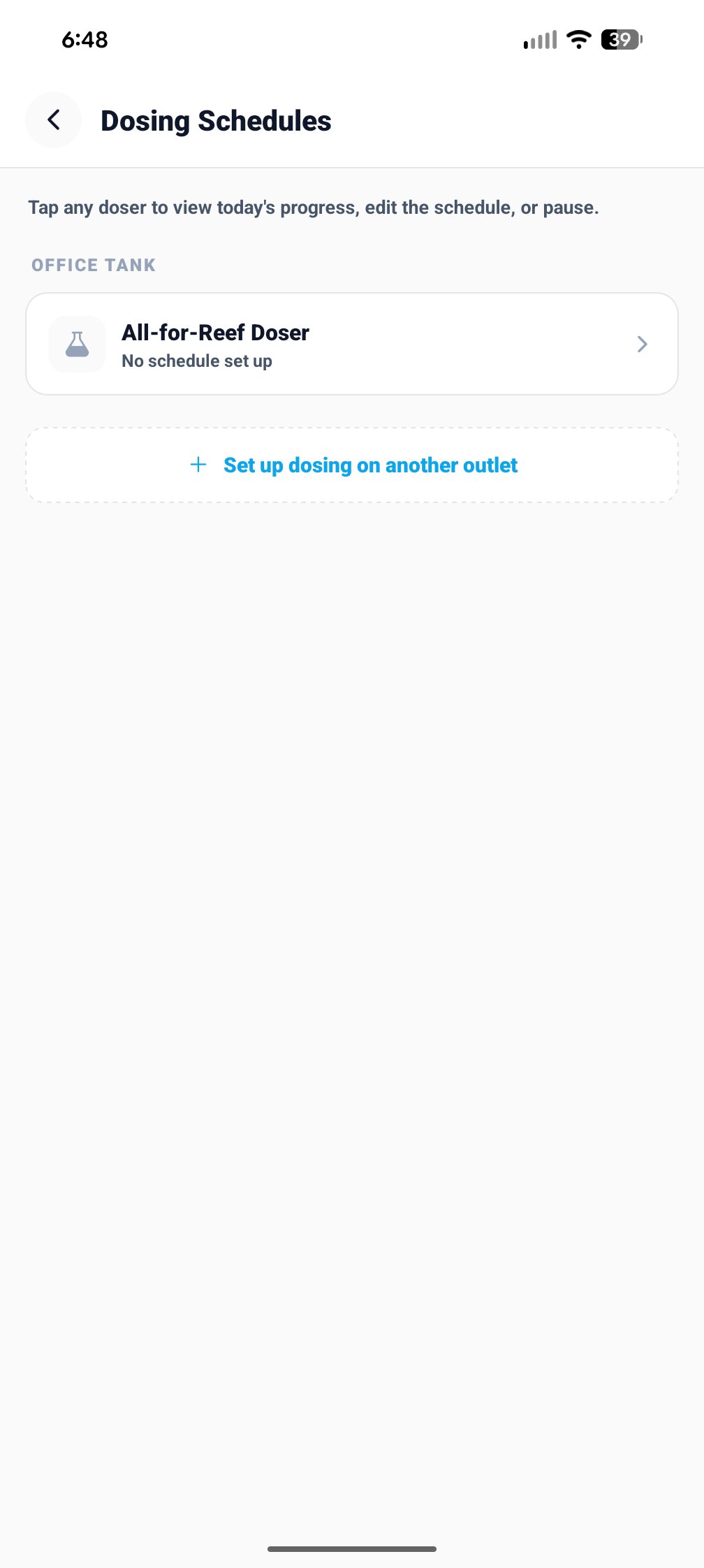
You can also reach the doser directly from the Control Center outlet list.
The Now tab — your dosing dashboard
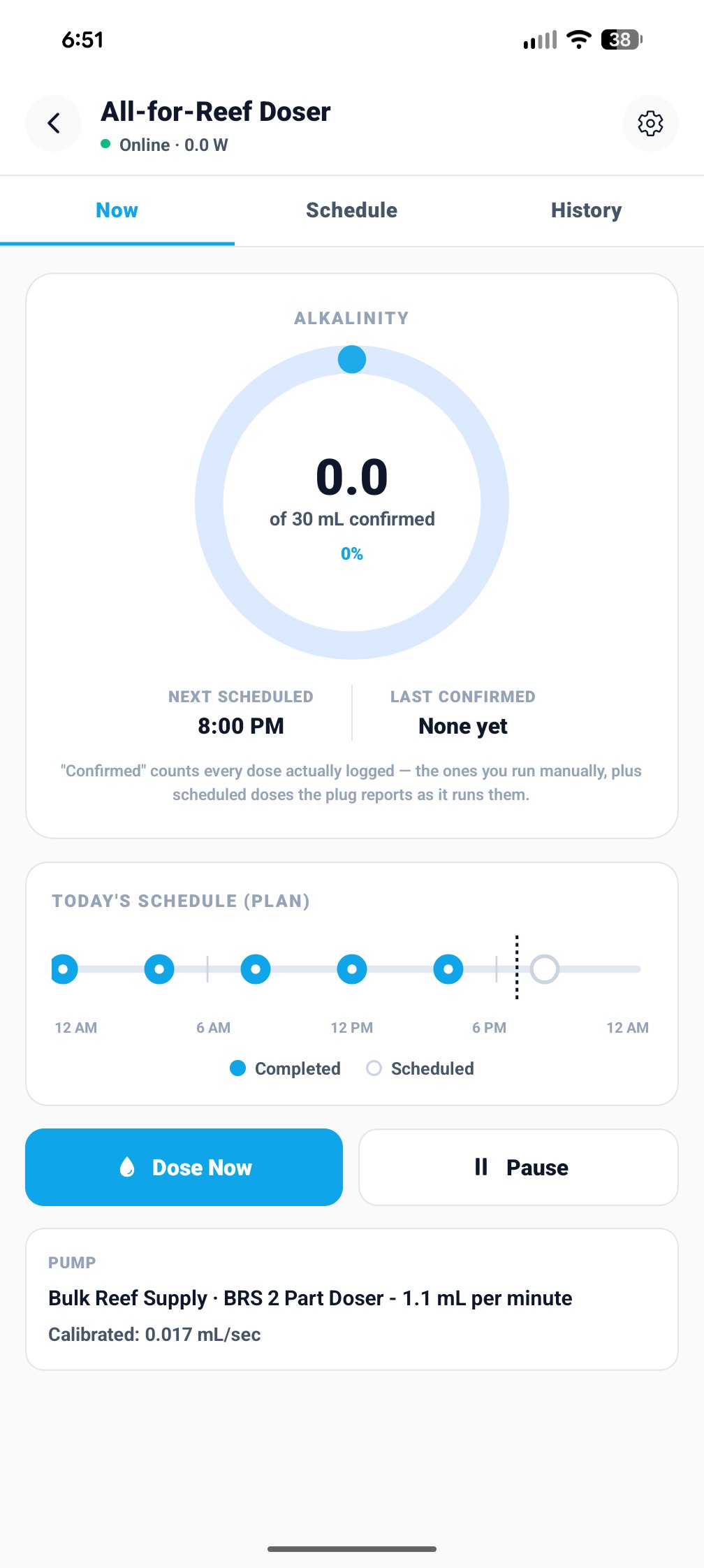
Before setup the Now tab shows No dosing schedule yet with a Set up schedule button. Once active, it shows a progress ring (mL confirmed today vs daily target), the next scheduled dose time, a dot timeline of today’s doses (filled dot = completed, hollow = upcoming), and Dose Now and Pause buttons at the bottom.
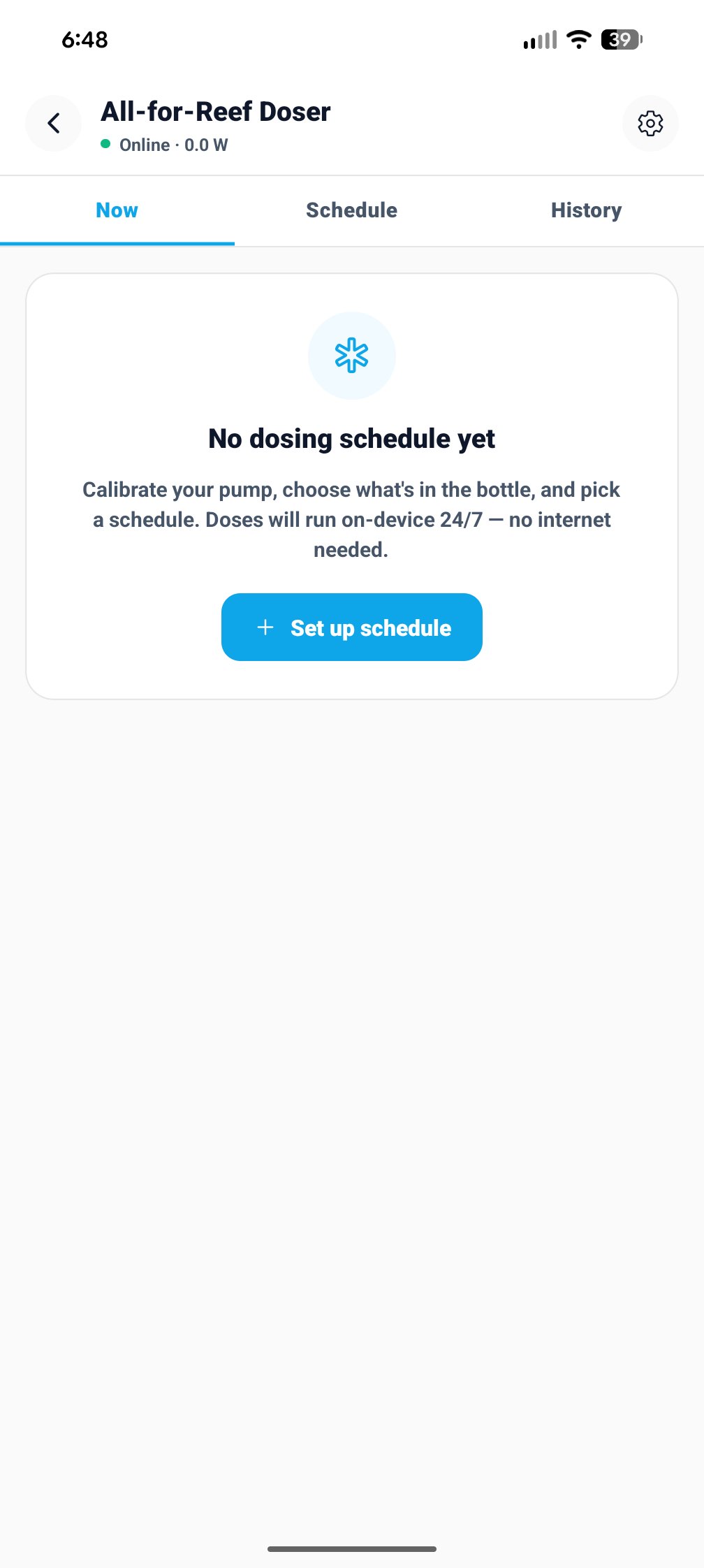
Confirmed counts doses actually logged — both manual Dose Now taps and scheduled doses the outlet reports via webhook each time it fires.
Calibration step 1: pick your pump brand
Tap Set up schedule or the Schedule tab. If the pump hasn’t been calibrated, the calibration flow appears first. Pick your brand: Jebao, Kamoer, BRS, Reef Octopus, Red Sea, or Other. Type the model name if you want — optional, stored for your reference.
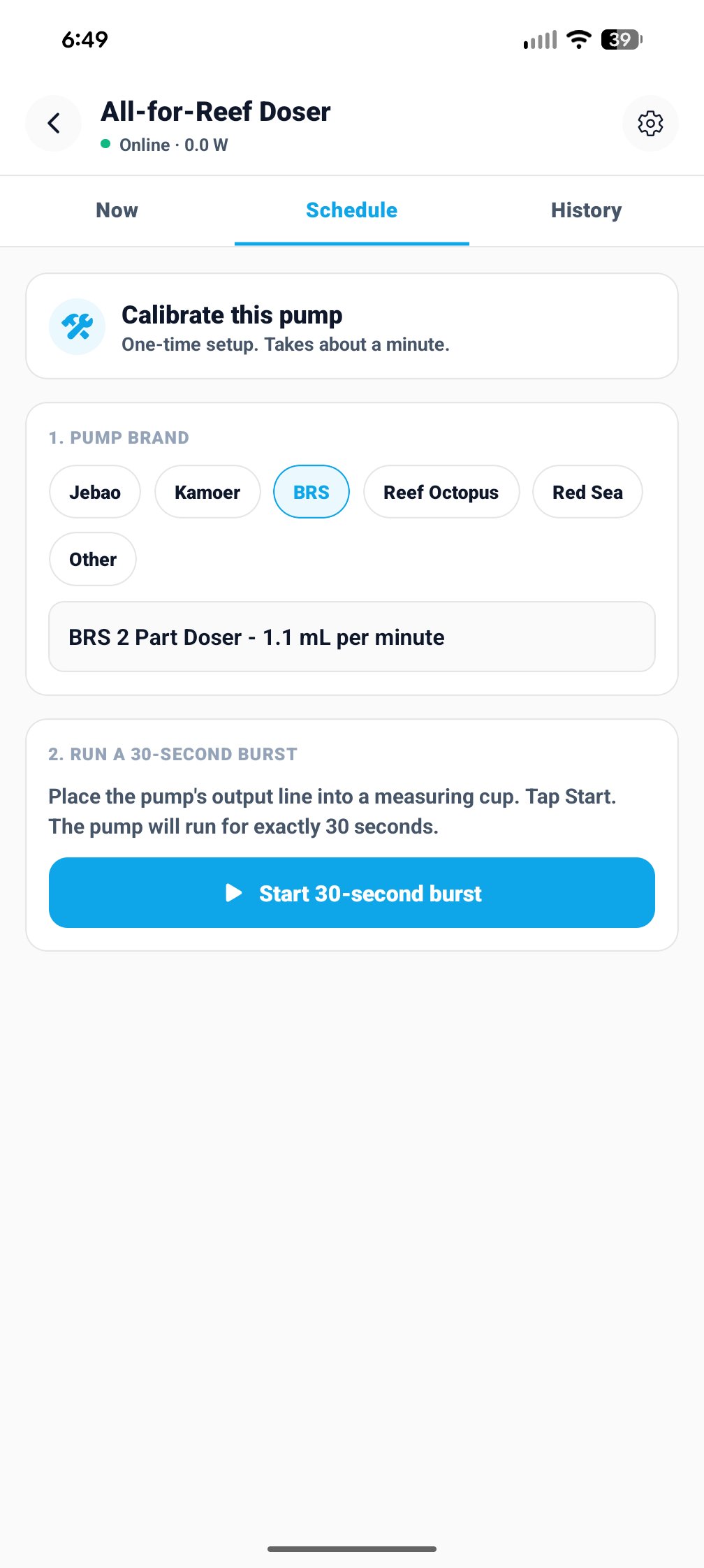
Brand and model don’t affect calibration math — they’re just labels so you know which pump is on which outlet.
Calibration step 2: run the 30-second burst
Place the pump’s output line into a small measuring cup. Tap Start 30-second burst. The outlet turns on the pump for exactly 30 seconds then cuts power automatically — you don’t need to watch it. A countdown ticks in the app.
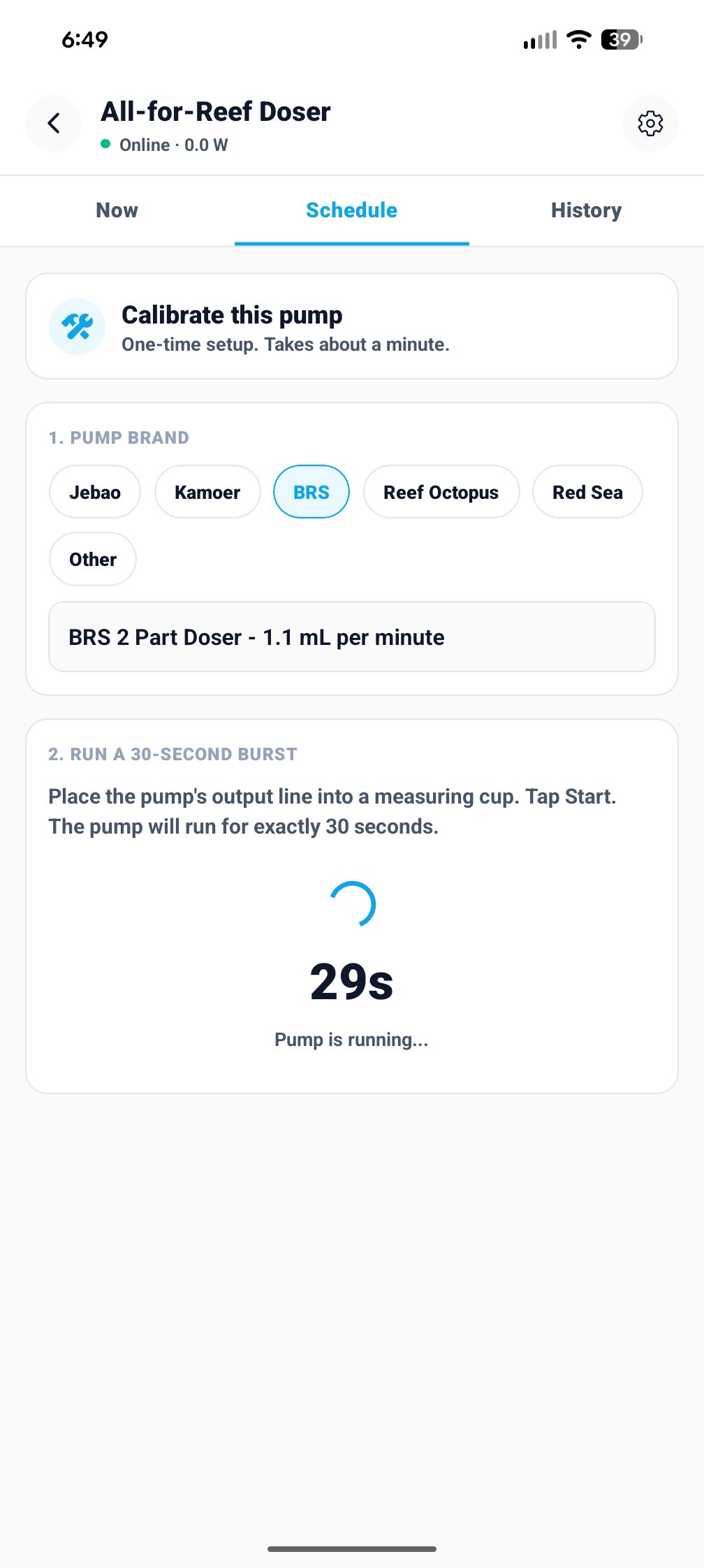
The outlet uses its own hardware timer to stop the pump. Even if your phone dies during the burst, the pump stops at 30 seconds.
Calibration step 3: enter the measured mL
When the burst finishes, measure the liquid in the cup precisely. Type the amount in mL and tap Save calibration. NextUpReef calculates your pump’s flow rate (mL per second) and saves it. This number drives every dose duration calculation from here on.
Precision matters here — a 0.5 mL error compounds across every dose every day. Use a graduated syringe if you have one.
Choose what you are dosing
After calibration the schedule editor opens. Pick the parameter: Alkalinity, Calcium, Magnesium, Nitrate, Phosphate, Carbon, Trace, or Custom. Type your product name — for example All-for-Reef, BRS 2-Part Alk, or Seachem Reef Fusion. This is how it appears in your dosing history.
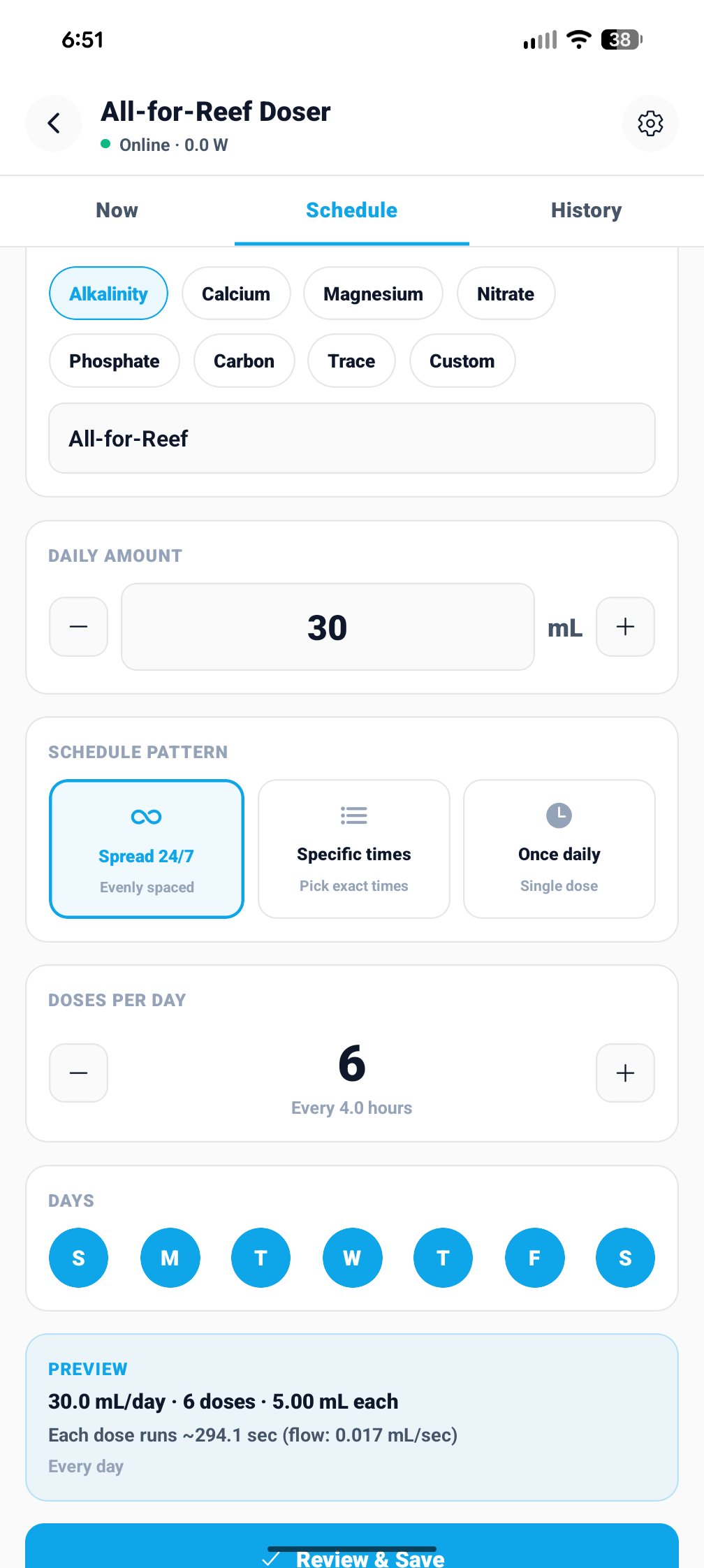
The parameter you pick determines which trend chart in Reef Pulse Analytics shows your dosing history.
Set your daily mL target and schedule pattern
Use minus and plus to set total mL per day. Then pick a pattern: Spread 24/7 evenly spaces doses across the day (6 doses = every 4 hours). Specific times lets you set exact times. Once daily delivers a single bolus dose. The preview at the bottom updates live.
Spread 24/7 is best for alkalinity. Small frequent doses keep chemistry more stable than one large daily dose.
Set doses per day and active days
For Spread 24/7 use the stepper to pick doses per day (1—24). The label shows the interval — 6 doses shows Every 4.0 hours. Tap the day circles to toggle active days. All 7 are selected by default.
Most reefers dose Alk, Cal, and Mag every day. Trace elements or carbon supplements might only run certain days.
Review and save to plug
Tap Review and Save at the bottom. A confirmation modal shows the complete plan: total mL per day, number of doses, mL per dose, burst duration in seconds, and every dose time listed. Read it over — then tap Save to plug. The app writes the schedule to the outlet over your local network.
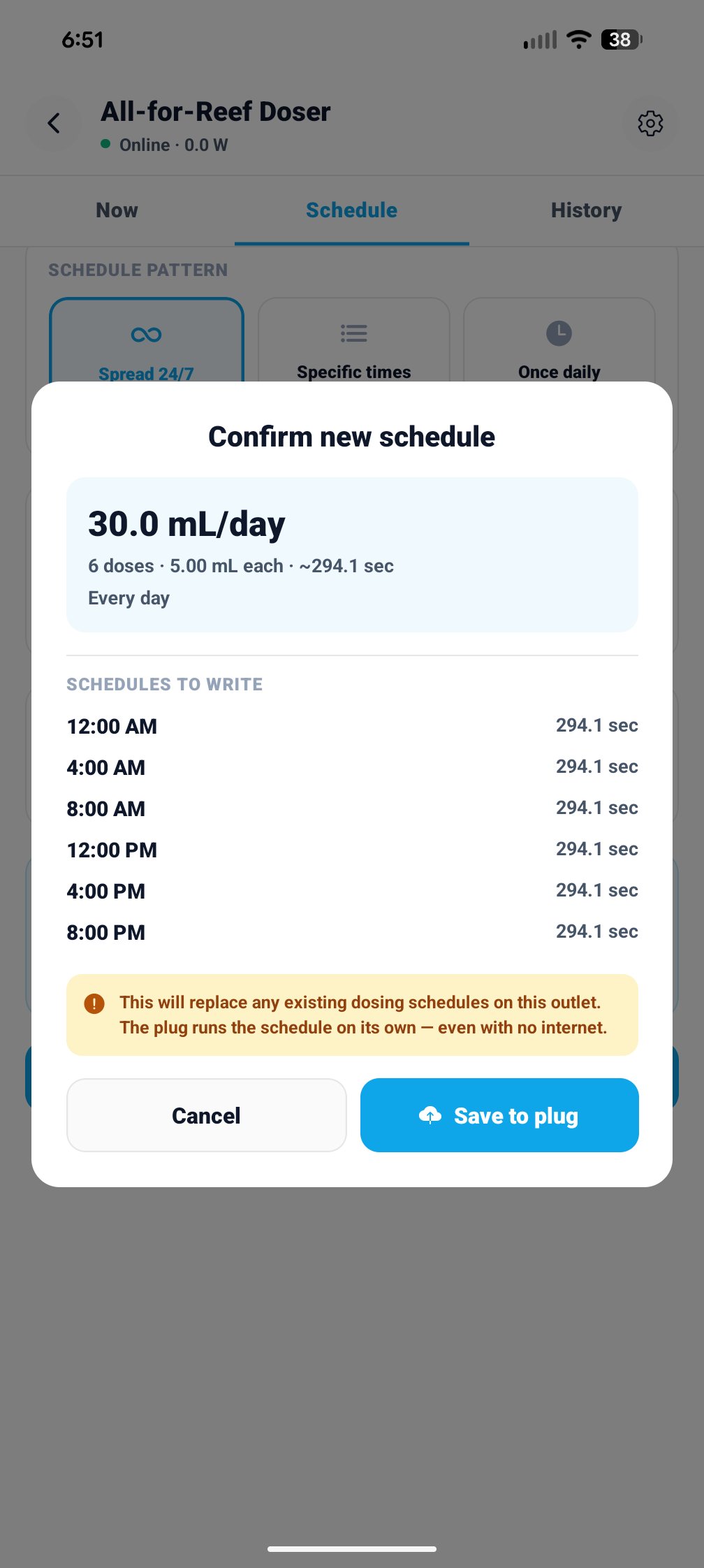
Example from the screenshot: 30 mL ÷ 6 doses = 5.00 mL per dose. At 0.017 mL/sec that’s 294.1 seconds per dose. NextUpReef calculates this automatically.
Done — your reef gets dosed no matter what
The schedule is on the outlet now. Your tank gets dosed at the right times whether your phone is home or not, your internet is up or not, or the app is open or not. The Now tab updates to show today’s progress ring, the next upcoming dose, and a full timeline.
Schedule patterns
Evenly spaces doses across 24 hours — Alk, Cal, Mag — keeps chemistry stable
You pick exact dose times — Avoiding feeding windows, matching water changes
Single dose at one time of day — Supplements where daily total matters more than frequency
After setup: what you can do
The Now tab becomes your dosing dashboard once a schedule is active.
Triggers one full dose immediately and logs it as a manual dose.
Pauses dosing for a set time. The outlet resumes automatically when the pause ends.
Shows every logged dose — scheduled (webhook) and manual — with timestamps and mL amounts.
Edit the schedule or recalibrate the pump any time.
Rename the outlet, update the IP address, clear all schedules, or remove the outlet.
Safety and reliability
NextUpReef applies these protections every time a dosing schedule is saved.
The outlet is set to initial_state=off. If power cuts, the relay stays off when power restores. Dosing resumes normally at the next scheduled time.
Every burst is hardware-capped at 300 seconds (5 min). The outlet never runs a dose longer than 5 minutes regardless of what the app does.
NextUpReef clears all existing cron jobs before writing a new schedule so schedules never conflict or exceed the Shelly’s 20-job maximum.
If your phone is on cellular or a different Wi-Fi, the app detects this and skips calling the outlet. Your schedule is unaffected.
Ready to automate your reef?
Shelly smart outlets are a NextUpReef Pro feature. All new users get a free 30-day Pro trial.